

Prerequisites
- Docker installed on your machine
- New Relic Account
- New Relic API Key
- Gateway v5.2.0 or higher
- OTel Collector docker image
Steps for Configuration
Step 1. Obtain New Relic API Key
- Navigate to your New Relic Console.
- Go to Profile → API keys.
-
Copy the key labeled as
INGEST-LICENSE.
You can follow the official New Relic documentation for more information.
Step 2. Configuration Files
OTel Collector Configuration YAML- Create a file named
otel-collector-config.ymlunder the configs directory. - Copy the following template into that file:
- Replace
<YOUR-ENVIRONMENT-STRING>with your specific New Relic endpoint (https://otlp.nr-data.netfor US orhttps://otlp.eu01.nr-data.netfor EU). - Replace
<YOUR-NEW-RELIC-API-KEY>with the API key obtained in Step 1.
-
Create a file named
docker-compose.ymlat the root level of your project directory. - Paste the following code into that file:
Replace the variable fields with the relevant data.
Step 3. Testing and Verifying Traces
-
Run
docker-compose up -dto start all services. - Initialize your Tyk environment.
- Create a simple API and deploy it to your Tyk Gateway. You can follow the Tyk Dashboard documentation for more information.
- Send requests to the API using cURL or Postman.
- Open New Relic Console.
-
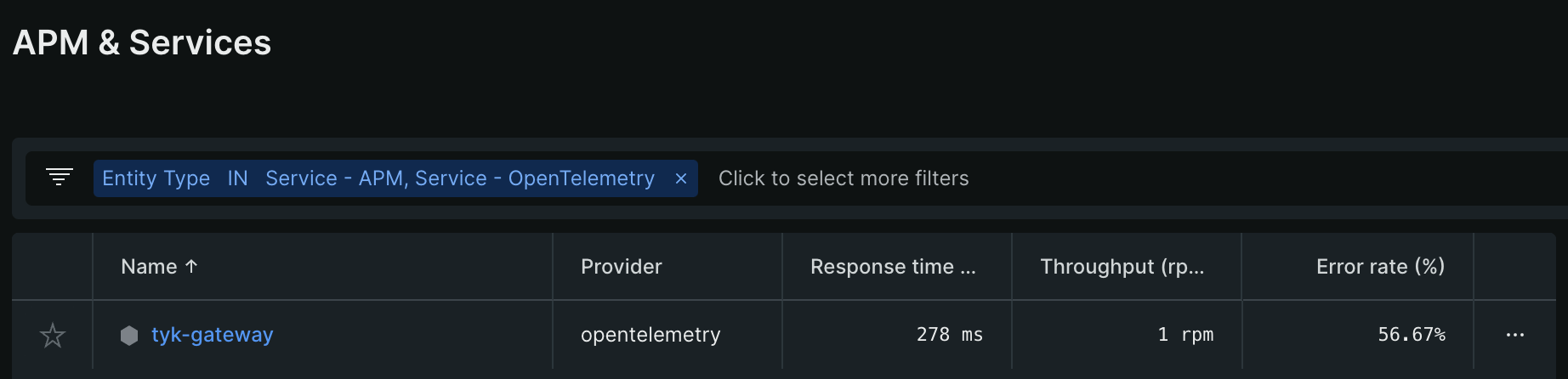
Navigate to APM & Services → Services - OpenTelemetry → tyk-gateway.
-
Wait for about 5 minutes for the data to populate.
Traces and graphs should now be visible on your New Relic console.
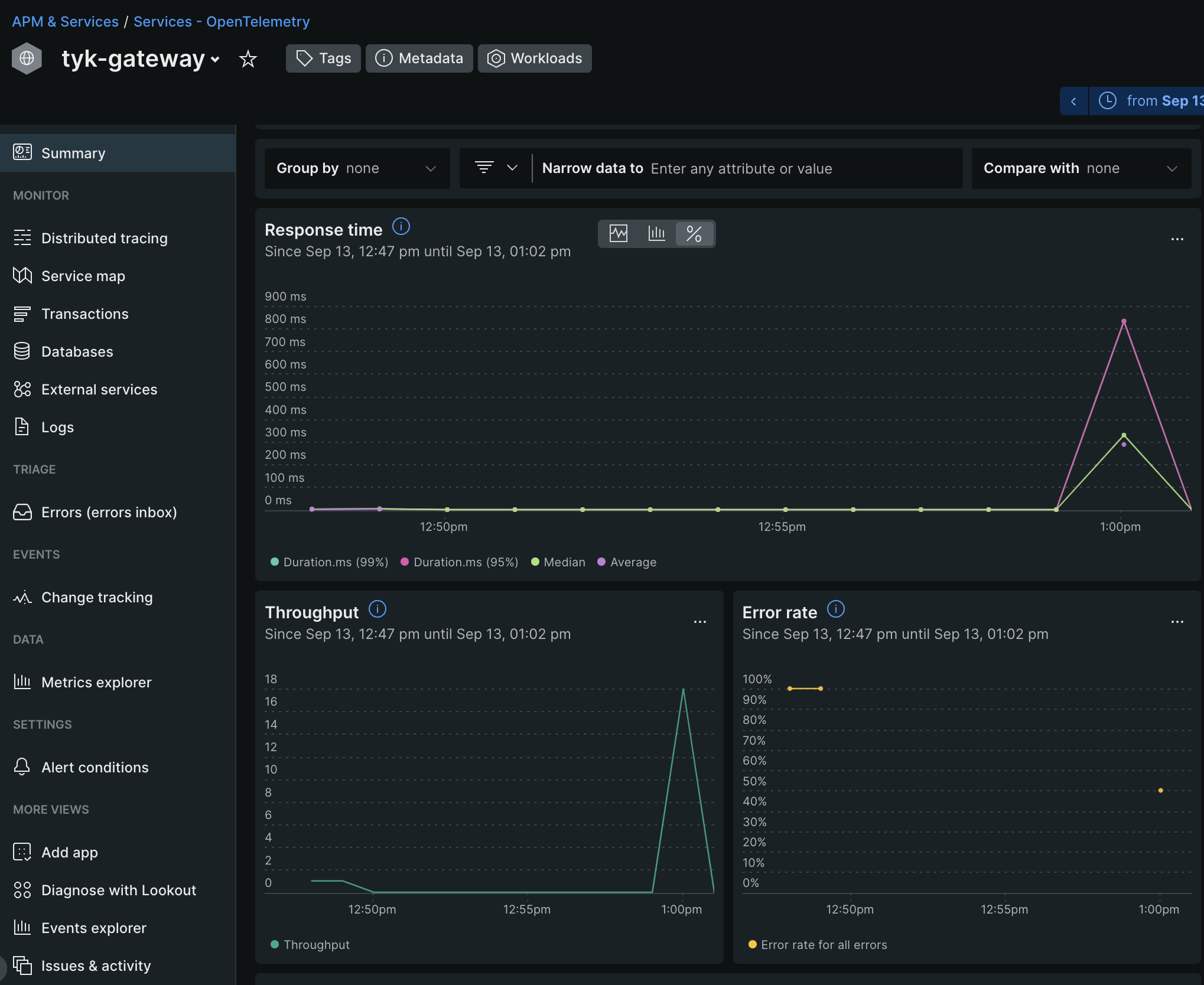 If traces are not showing, try refreshing the New Relic dashboard.
Troubleshooting
If the traces aren’t appearing:- Double-check your API key and endpoints.
- Ensure that your Tyk Gateway and New Relic are both running and connected.